SAM Next
Fuel Station Management System
SAM Next is an internal operations system used across gas stations in Sweden. It supports daily staff workflows such as equipment handling, inspections, maintenance, and reporting.
Research & insights
Research for this project was based on direct collaboration with employees and managers working across different gas station operations. By speaking with people in different roles, I aimed to understand the tasks they perform in the system and how they complete them in their daily work.
Insights were gathered through meetings, interviews, and observation of how the system is used in practice. This helped reveal common friction points, operational constraints, and areas where the current interface made tasks more complicated than necessary.
These findings helped build a clearer understanding of users and their workflows, which informed the redesign of the interface to make it more intuitive and better aligned with real operational needs.
Key insights
• Users operate in fast-paced environments where tasks must be completed quickly, often with limited time and attention. → This required clear structure, predictable interactions, and minimal steps.
• The system is used by people with different roles and levels of experience — from station employees to managers. → The interface needed to remain intuitive and consistent, regardless of user role.
• Many workflows rely heavily on forms and repetitive actions, increasing the risk of user errors. → Improving form structure, validation, and error handling became a key priority.
• Navigation and overall system structure were not always clear, making it harder to find information and complete tasks efficiently. → This led to restructuring the sidebar and simplifying the information architecture.
• Multiple user scenarios, especially around QR-related workflows, shared similar patterns. → These were unified into a smaller set of core flows to reduce complexity and ensure a more scalable solution.
Navigation Redesign
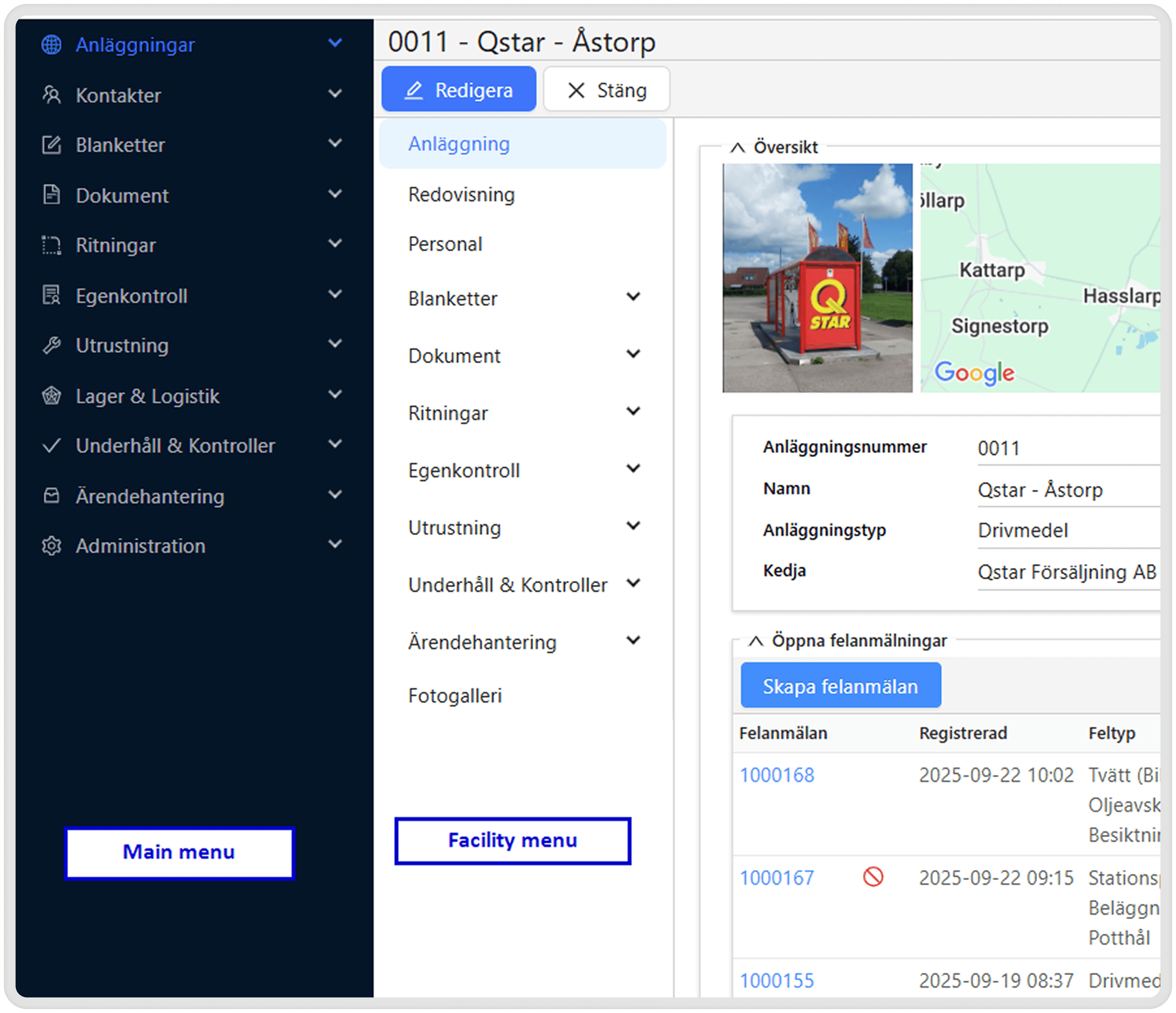
Based on research findings, the previous interface used two separate navigation layers — a main menu and a facility menu — which made the overall structure harder to understand and required additional steps to move between sections.
Key issues in the previous navigation:
Split navigation structure
The system used two different menus (main and facility), forcing users to switch between them to access related sections.Unclear hierarchy
The relationship between sections and subsections was not always obvious, making it harder to understand where certain information belonged.Long navigation lists
Users often needed to scroll through long menus to locate specific tools or pages.Inefficient task navigation
Frequent switching between menus slowed down everyday workflows and made navigation less intuitive.
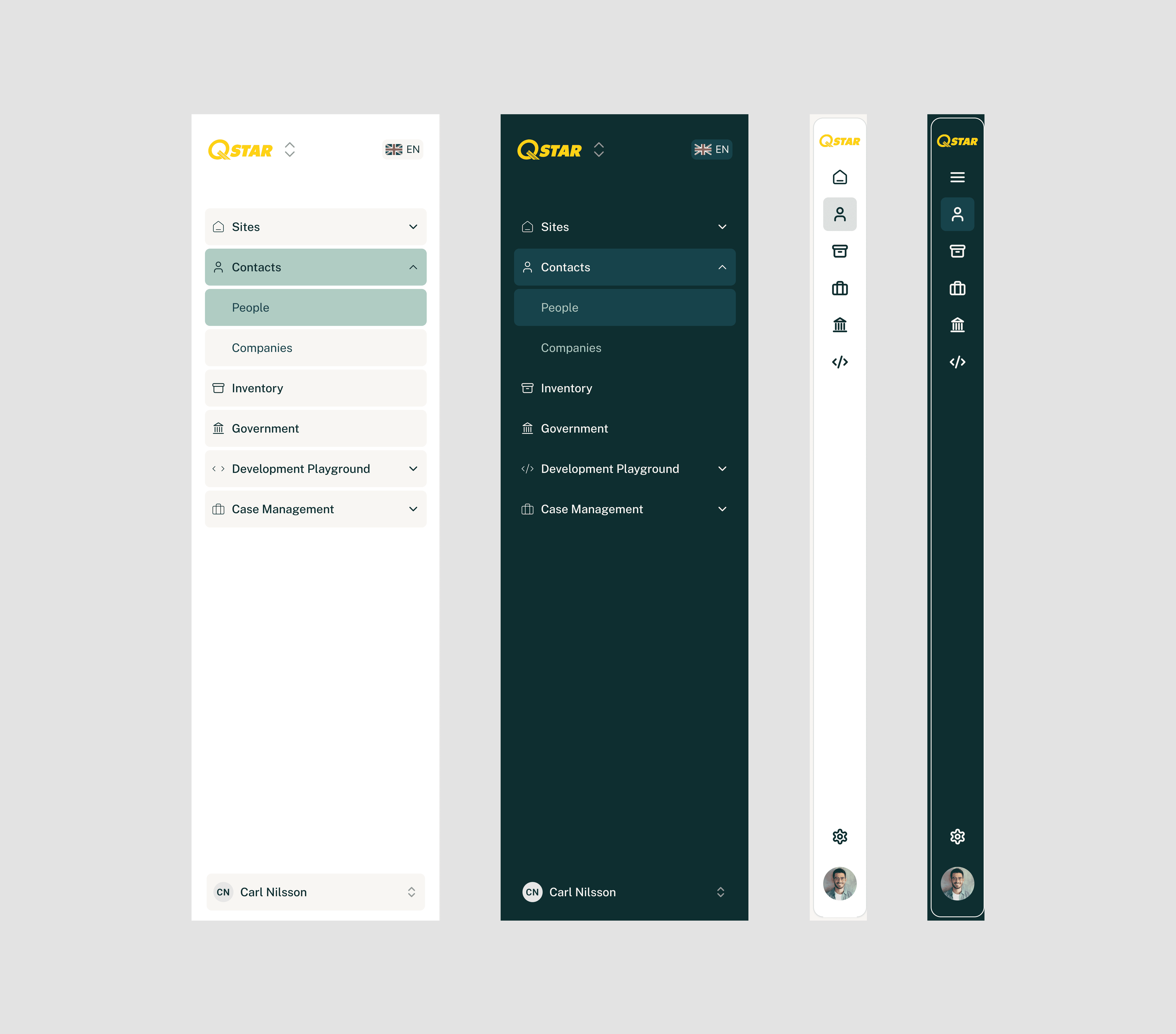
The redesigned navigation simplifies the structure and makes everyday workflows easier to navigate.
Key improvements:
Unified navigation structure
The main and facility menus were merged into a single sidebar, reducing complexity and making the overall structure easier to understand.Clearer hierarchy and grouping
Sections were reorganized and grouped logically, with expandable items that help users quickly locate relevant tools and information.Improved user context visibility
The navigation now displays the current user and active client, helping users clearly understand which environment they are working in.Quick access to key controls
Language switching, user profile access, and logout are now directly available in the sidebar for faster access.Flexible navigation layout
The sidebar supports both expanded and compact modes, allowing users to adjust the interface to their workspace and screen size.Improved visual hierarchy
Updated iconography, spacing, and color hierarchy make the navigation easier to scan and reduce visual noise.Light and dark themes
Two interface themes were introduced to support different working environments and visual preferences.
Form Layout Redesign
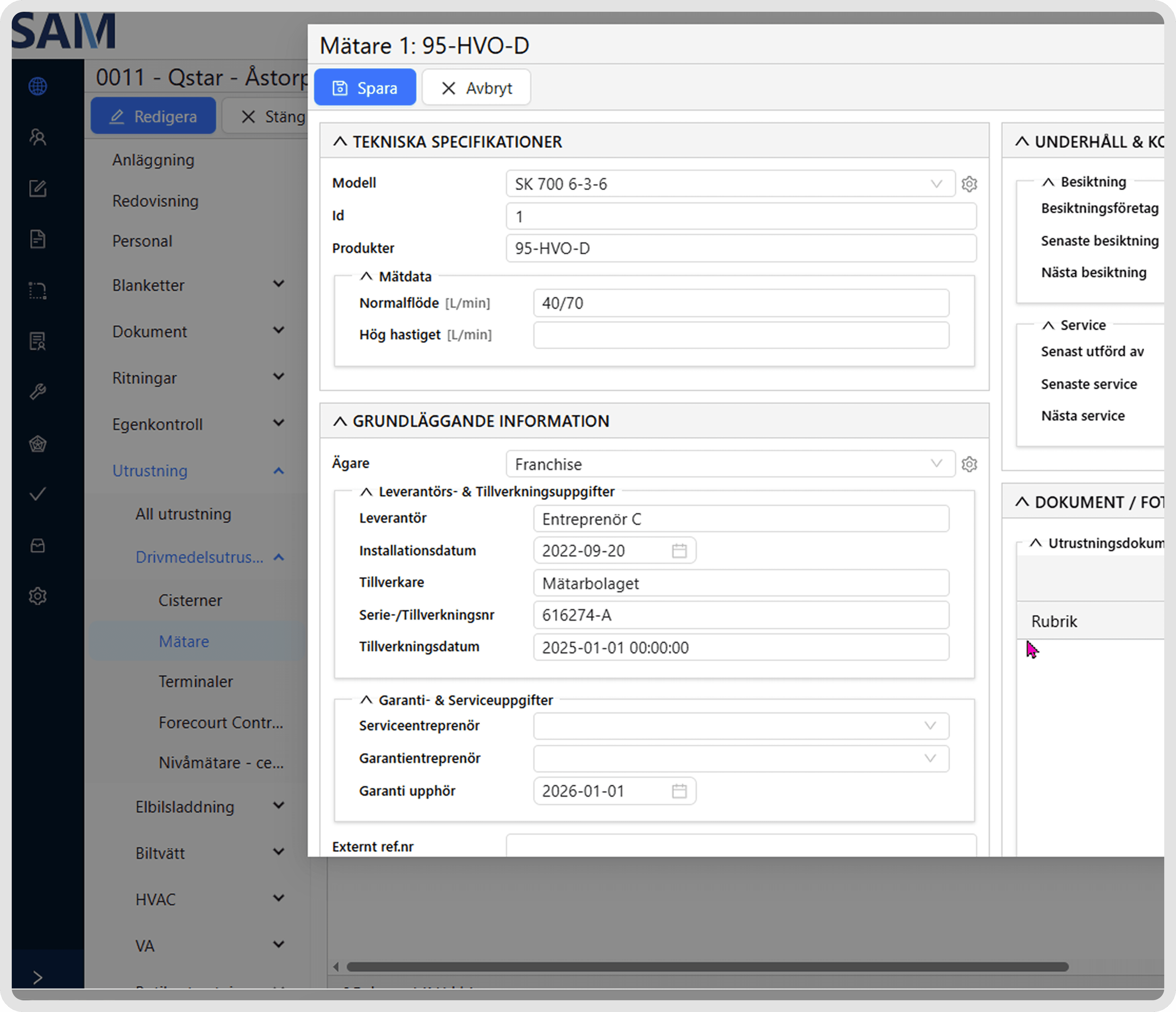
In the previous interface, forms contained a large number of fields with very little visual hierarchy.
Information was presented as long blocks, which made it difficult for users to scan the content and quickly find the fields they needed.
Key issues:
Low visual hierarchy
Section titles, field labels, and form elements looked visually similar, making the structure harder to understand.Difficult navigation in long forms
Users had to scroll through large pages to locate specific sections or fields.Overloaded layout
Large forms with many inputs created visual clutter and reduced readability.Limited support for multi-value fields
Adding and managing multiple values was not intuitive.
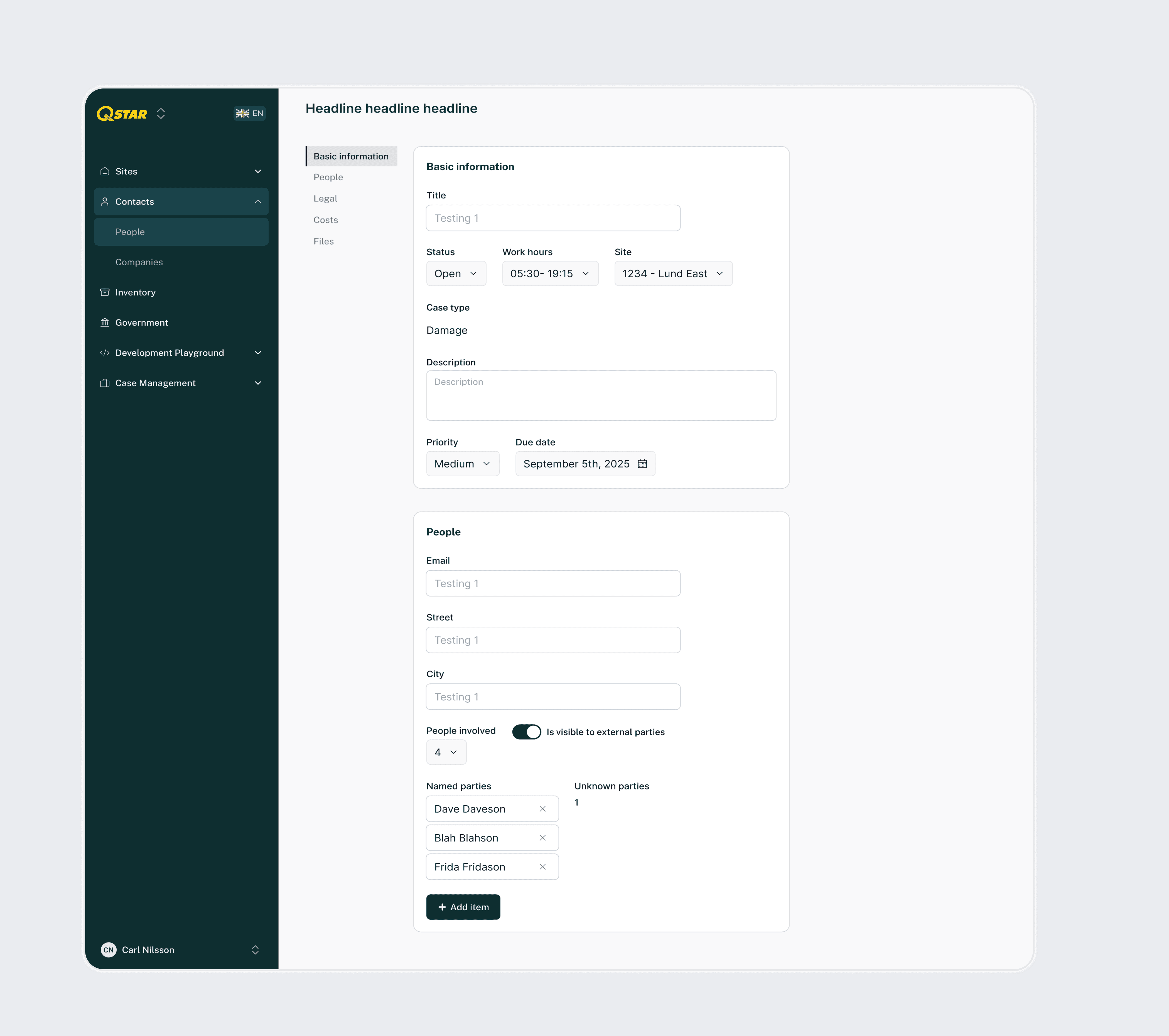
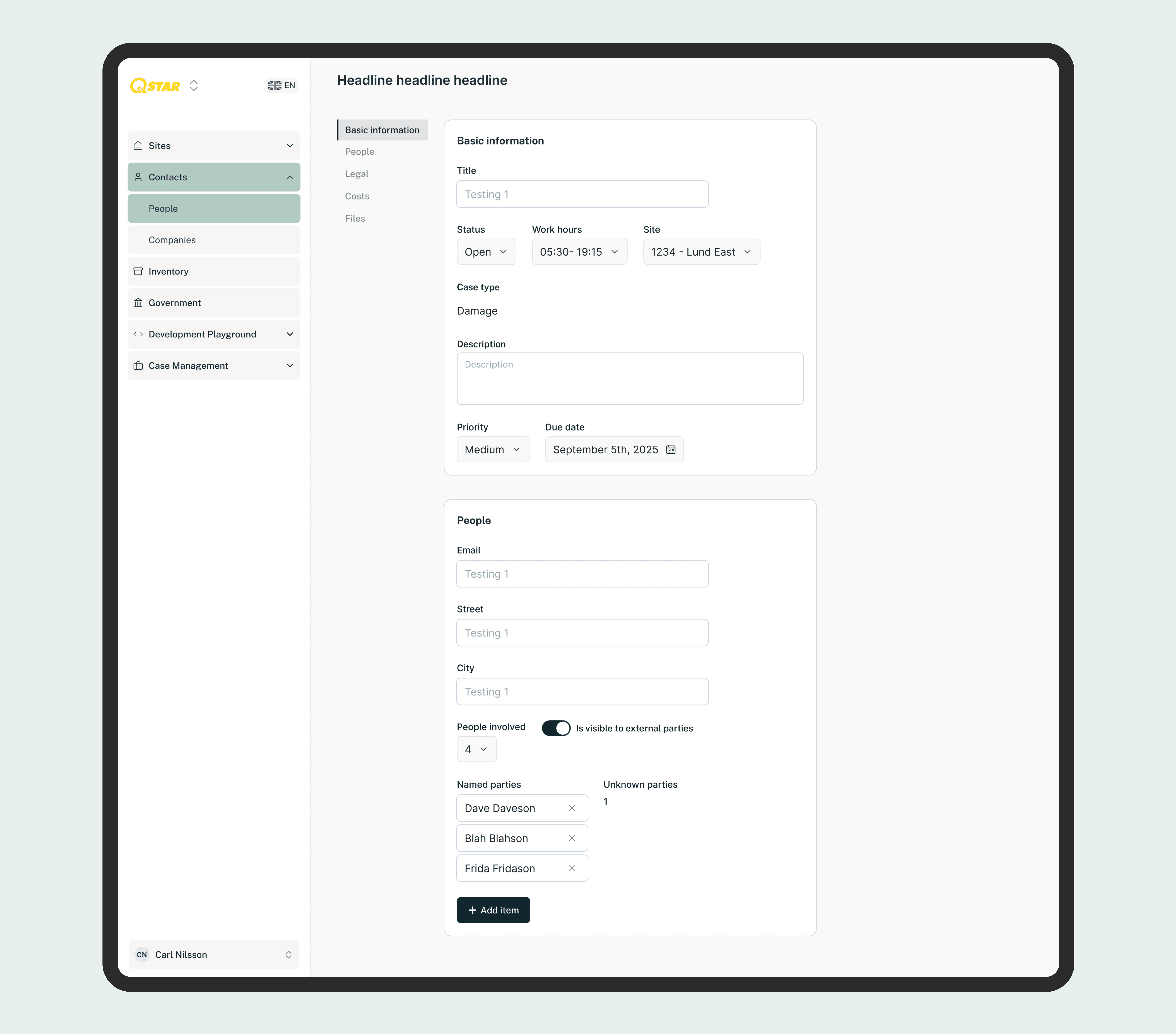
The redesign focused on making forms easier to scan, navigate, and complete during daily work.
Key improvements:
Clear constructuretent
Information is now grouped into cards with clear section titles.Collapsible sections
Sections can be expanded or collapsed, helping users focus only on the information they need.Improved field labels
Field labels were redesigned to clearly distinguish them from section headers.Section navigation for long forms
An additional side navigation allows users to quickly switch between form sections without scrolling through the entire page.Improved multi-value fields
Fields that allow multiple values were redesigned to make adding and removing items easier and more intuitive.Cleaner visual hierarchy
Updated spacing, grouping, and alignment improve readability and make forms faster to work with.
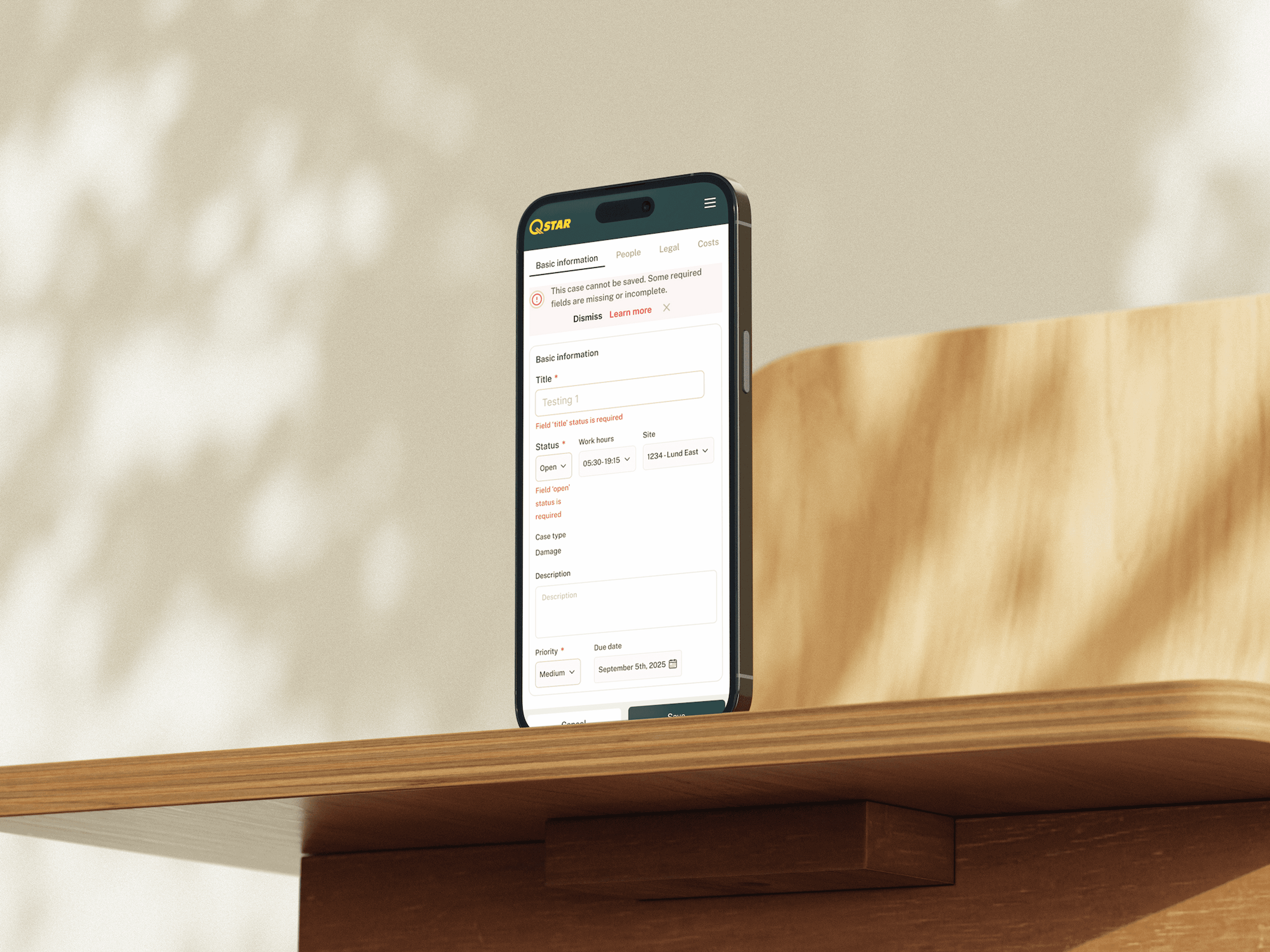
The redesign also includes clear handling of validation and error states. Different error scenarios were considered, including errors related to individual fields as well as errors affecting the entire form. For this reason, dedicated space was introduced for document-level error messages so users can clearly understand what needs to be fixed.
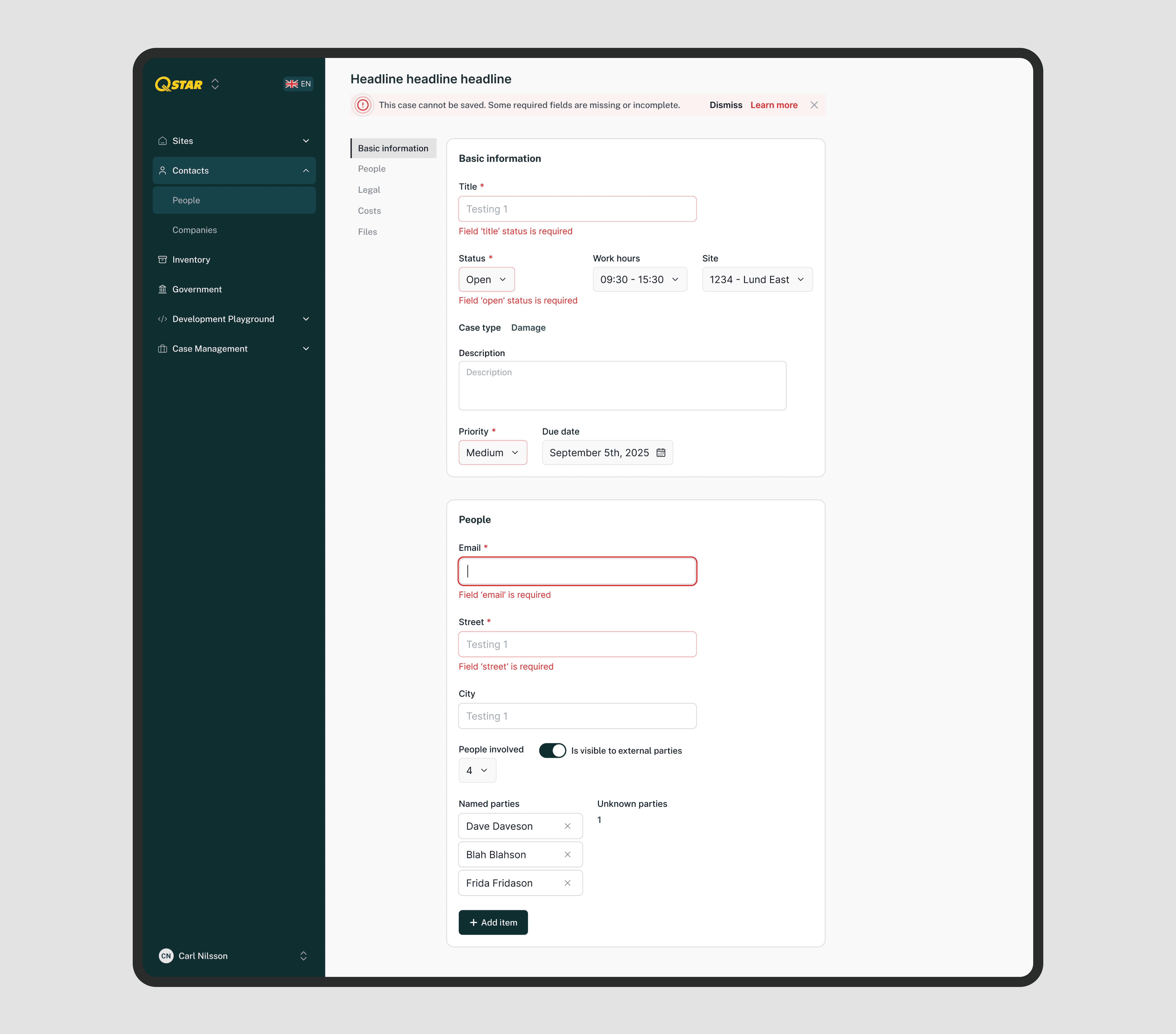
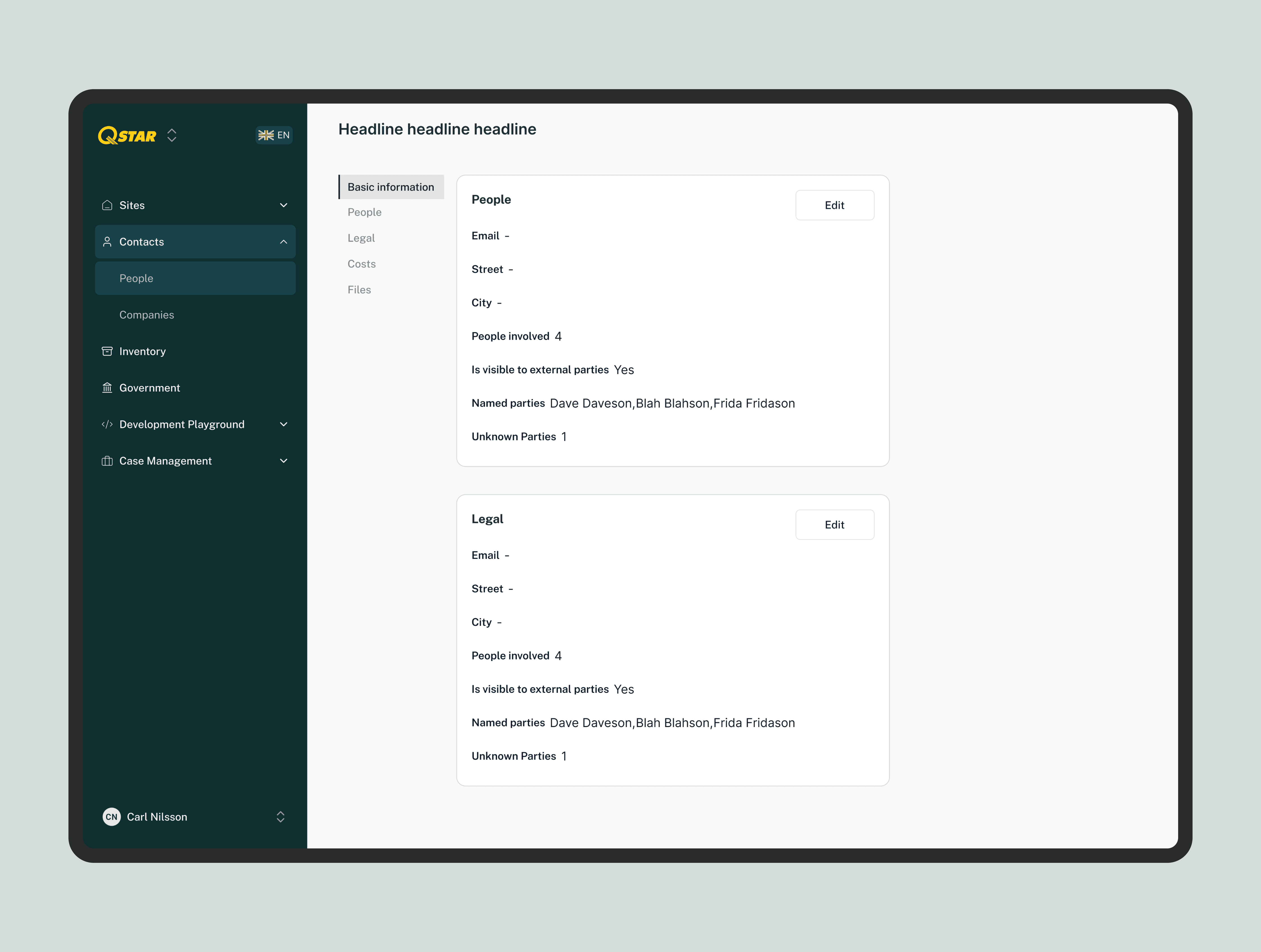
In addition, the interface supports read modes, allowing users to easily switch between viewing information and editing it when necessary.
Mobile version
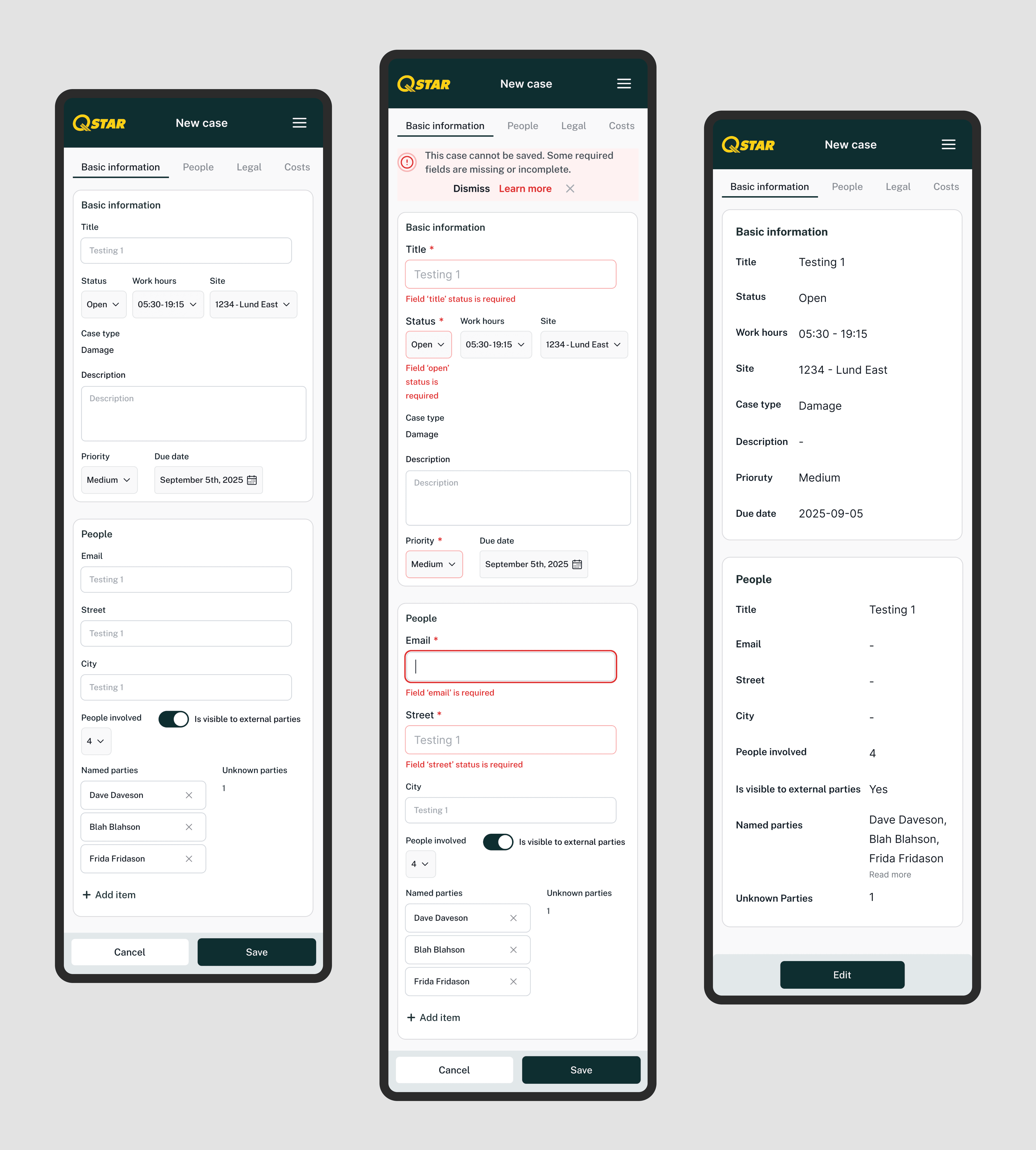
A mobile version of the forms was also designed to ensure the system remains usable on smaller screens and in on-site working conditions. The layout adapts to mobile devices by stacking fields vertically and simplifying the overall structure to improve readability.
Section navigation and collapsible cards help users move quickly between parts of the form without excessive scrolling. Key actions remain easily accessible, allowing users to review and edit information efficiently even on smaller screens.
QR feature
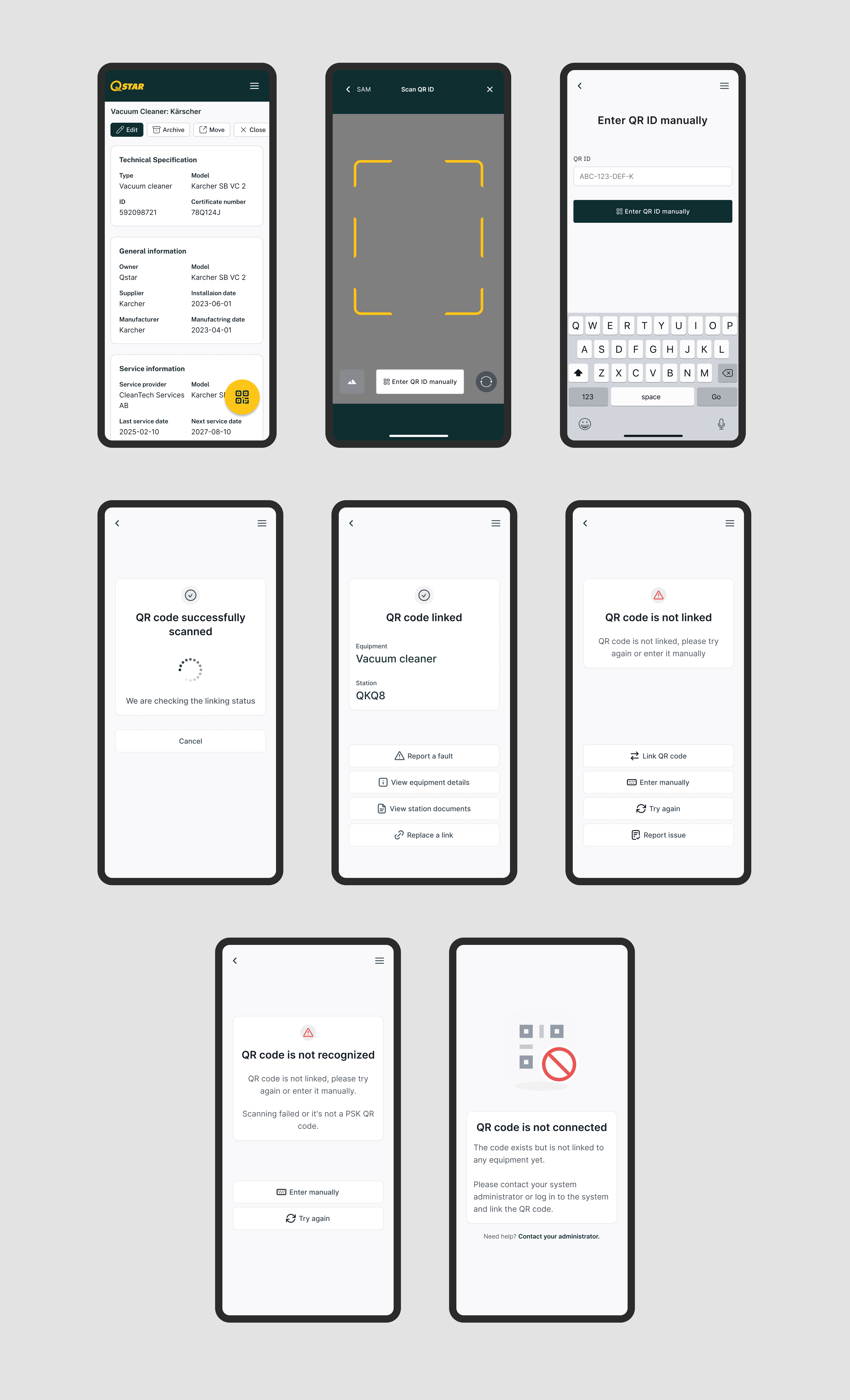
As part of the project, I worked on designing a QR-based feature for equipment workflows, based on a set of detailed user stories provided by the client. The main challenge was that, while there were many different scenarios (contractors, station employees, inspectors), most of them overlapped in functionality.
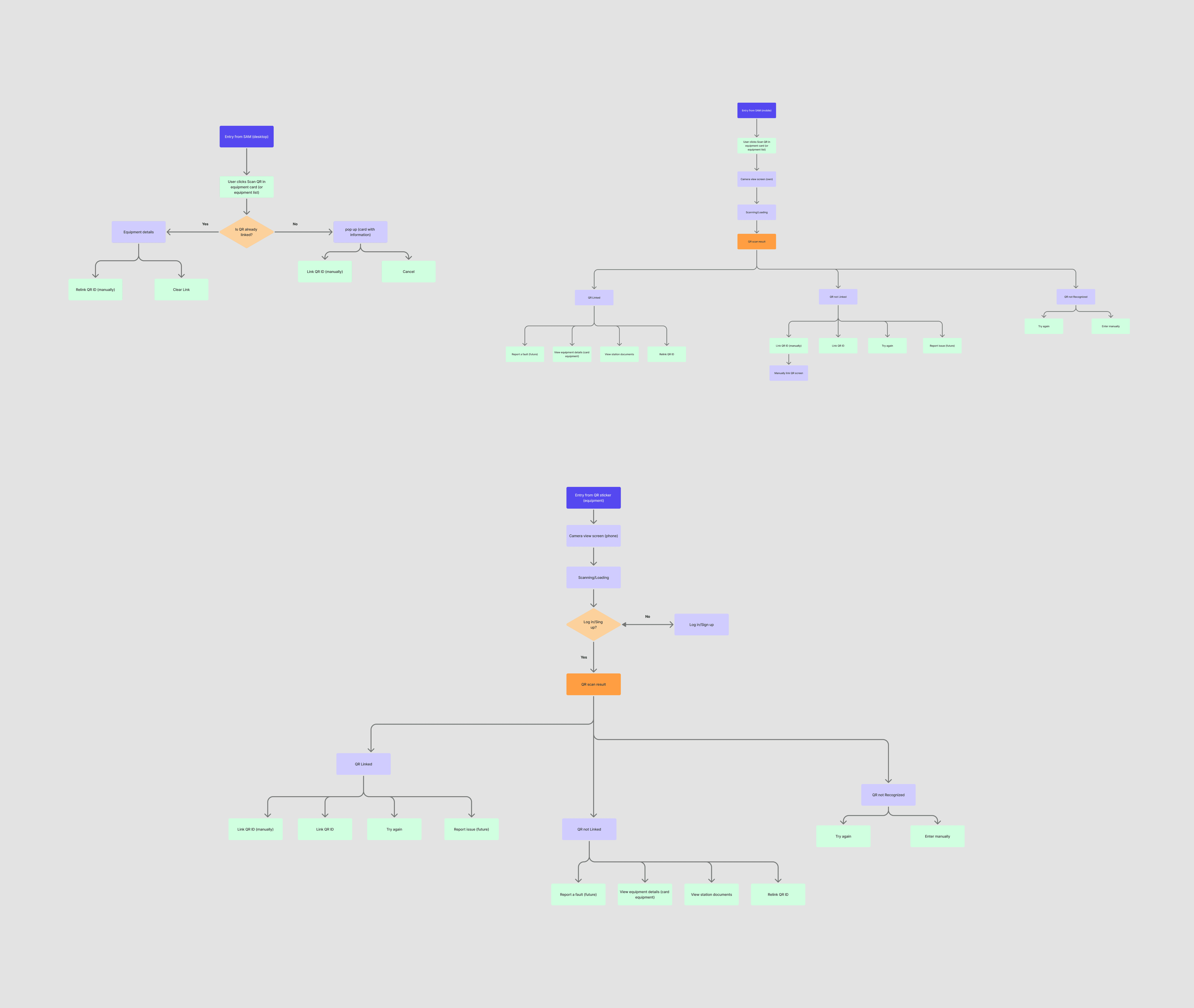
To reduce complexity, I consolidated the flows into three core UX functions:
• Landing after scan — redirecting users directly to the relevant context, such as equipment details, fault reports, inspections, or documentation.
• QR scanning component — a reusable scanning flow with consistent states for linked, unlinked, and error scenarios.
• Link / re-link flow — managing QR code assignment and replacement for equipment and stations.
Based on these principles, I developed user flows, wireframes, and final UI, creating a scalable and consistent experience across different workflows.